
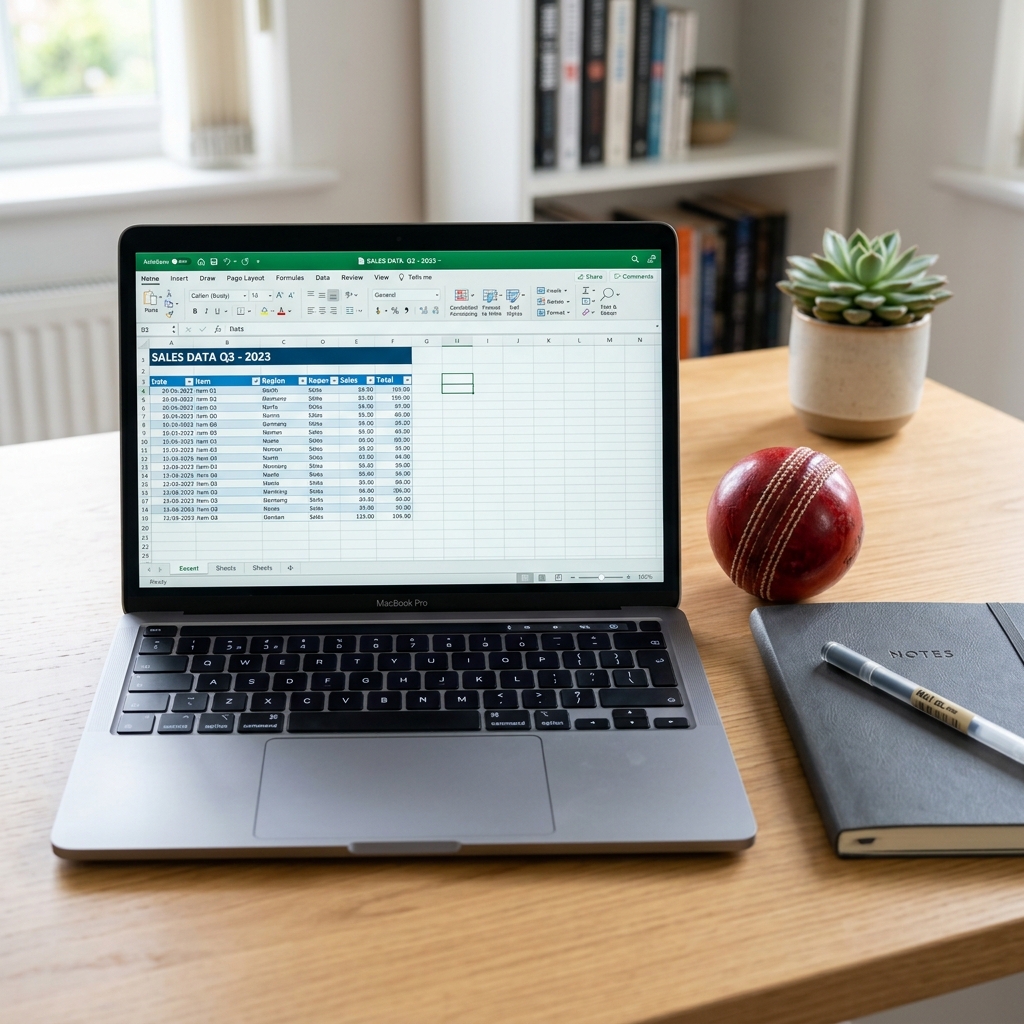
Before you launch your auction room, you need to collect player registrations and structure them in a clean table. Using Excel is the best way to clean and manage this information. Here is the standard way to set up your player data.
Step 1: Set Up Your Columns Correctly
To make sure your spreadsheet works seamlessly for offline calculators or online bulk uploads, set up these columns on your sheet. If you need help with allocating starting purse and calculations, check out our Cricket Auction Team Budget Calculator Guide.
- Player Name: The full name of the player.
- Role: Categorize each player exactly as: BATSMAN, BOWLER, ALL ROUNDER, or WICKET KEEPER. Do not use custom abbreviations.
- Base Price: The minimum points or currency needed to buy the player.
Step 2: Clean and Normalize Data
Ensure there are no blank cells or typo errors in the role column. If a cell contains a typo, online import scripts or local spreadsheet math won't recognize it. To simplify this task, you can download our pre-formatted Free Cricket Auction Excel Template which contains ready-made columns and dropdown selections.
Step 3: Import Your Excel File Into the Web Tool
Once your Excel list is complete, save it. You don't need to type these names manually into your web browser. Go to our Free Cricket Auction Tool, and in the Teams & Players section, click the Upload CSV / Excel button. Upload your spreadsheet, and all players will load instantly!
Ready to import your player lists?
Get our free Excel template or upload your file directly to our web tool.
Download Excel TemplateScale Your Tournaments With PlayBid
If you are managing a large league with player photos, online registration, and live mobile bidding for owners, we recommend using PlayBid, our professional cricket auction software. PlayBid simplifies player management and exports statistics automatically.